







Free and open source, built by Addsum
slide-maker is an open-source AI skill for creating editable presentations. It runs in AI assistants that support skills. Give it a paper, repository, document or topic. It plans the content, designs the slides and generates a .pptx you can edit in PowerPoint, along with the script used to generate and revise it.
Choose a built-in template or bring a reference deck. Confirm the outline and design before the build, then view the rendered slides and choose the level of independent review.
Intro video · Templates · Examples · Features · How it works · Quick start · Troubleshooting
Install slide-maker in your AI assistant. Open a terminal, run this command, then choose your assistant and installation scope:
npx skills add addsumtech/slides_makerAfter installation, ask your AI assistant to create a presentation. The first run checks the environment and guides you through any missing dependencies. Replace paper.pdf in this example with your own filename:
Use slide-maker to turn paper.pdf into an English lab-meeting presentation.
Audience: my advisor and labmates. A 12-minute live talk, about 15 slides.
Keep it visual and concise. Show me the outline and design directions first.
To choose a style, browse the templates below and copy its prompt.
The skill includes thirty templates. Each has two palettes and seven page types: cover, section, image with text, points, quote, data and closing. Typography, charts and layouts share the same design, with pages adapted to your content.
Four templates use images: **Editorial magazine (editorial), Soft organic (soft) and Collage scrapbook (collage)** arrange your photos; **Watercolour storybook (storybook)** works with a series of illustrations. The other twenty-six templates use editable native shapes and need no pictures.Twelve selected styles are shown below. Select “Preview all pages” beneath a sample to see every page type and both palettes.
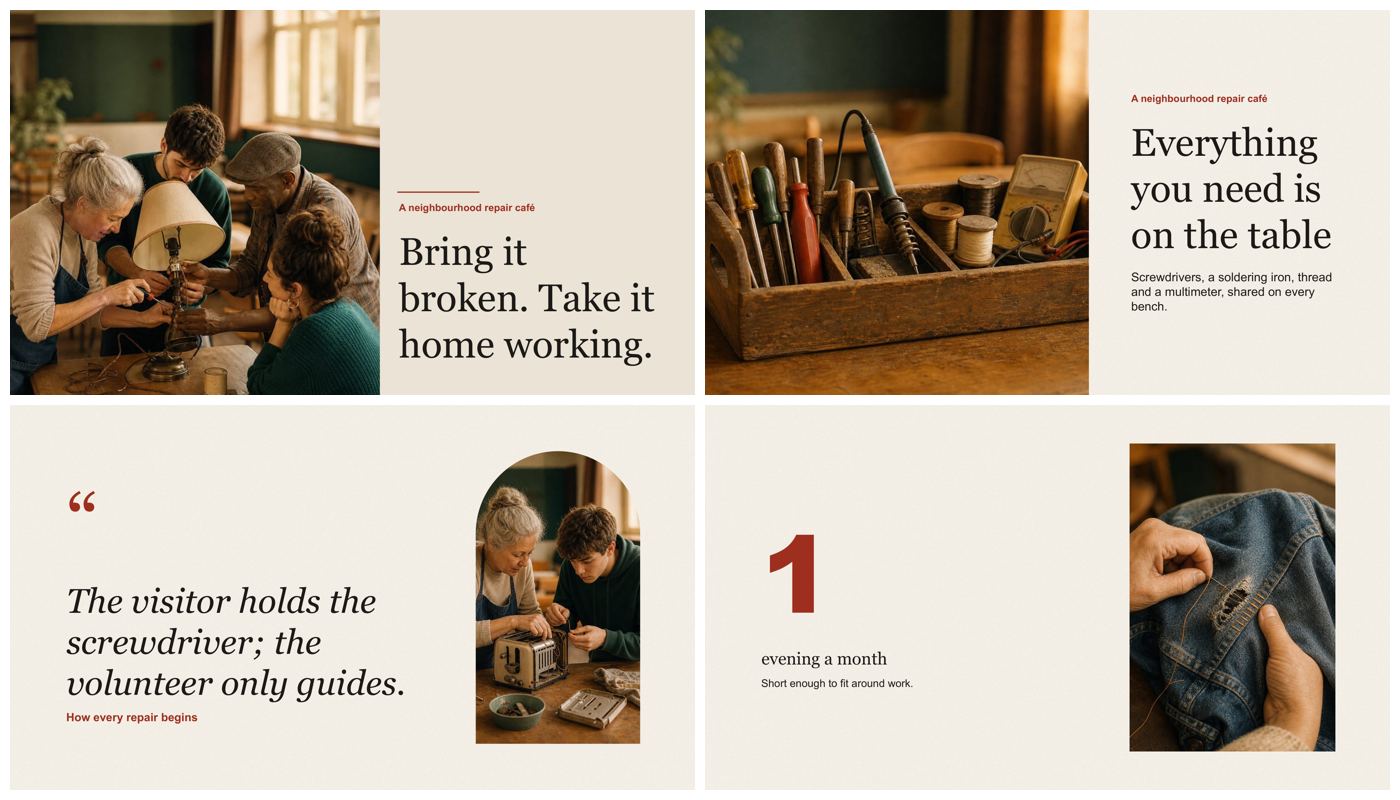 Editorial magazine Photo layouts Preview all pages |
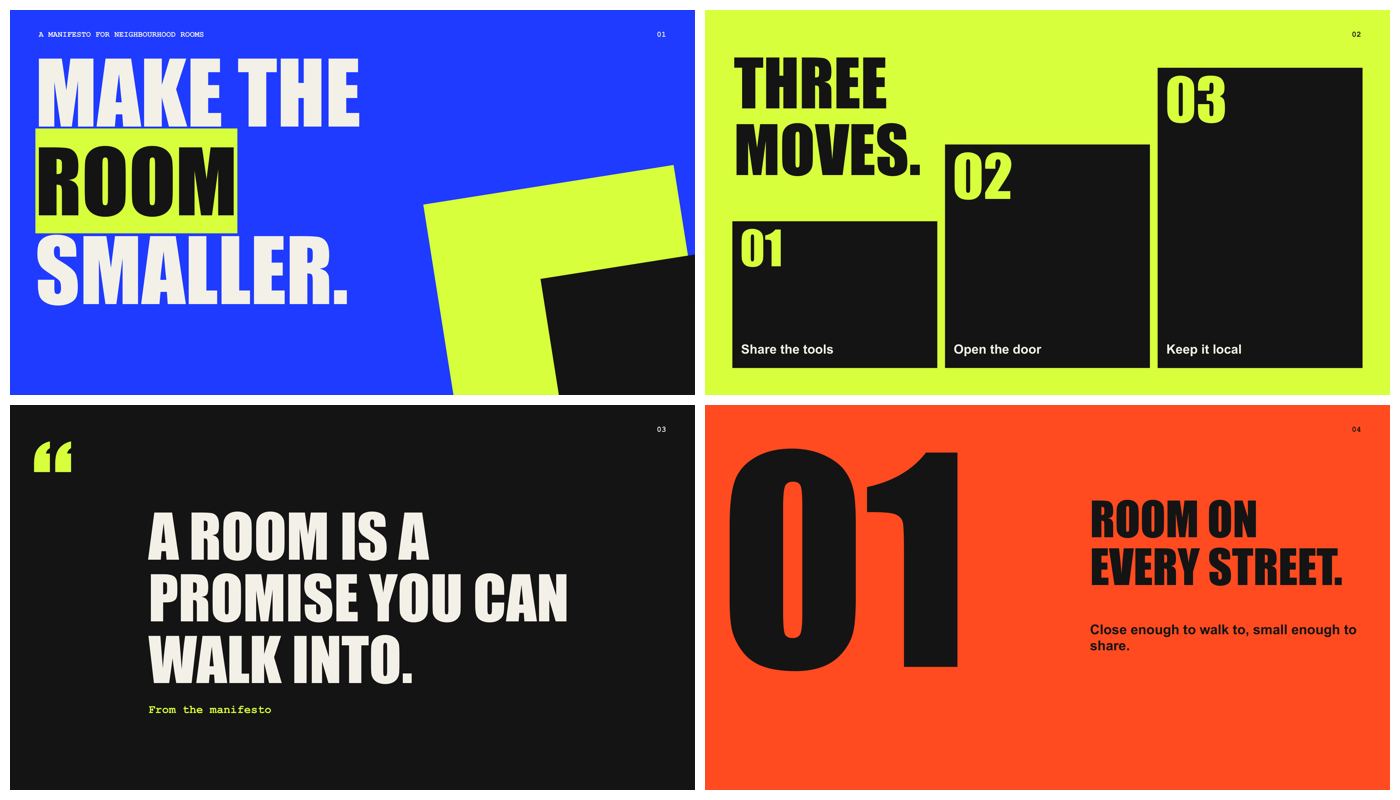 Type poster launch, manifesto, opinion Preview all pages |
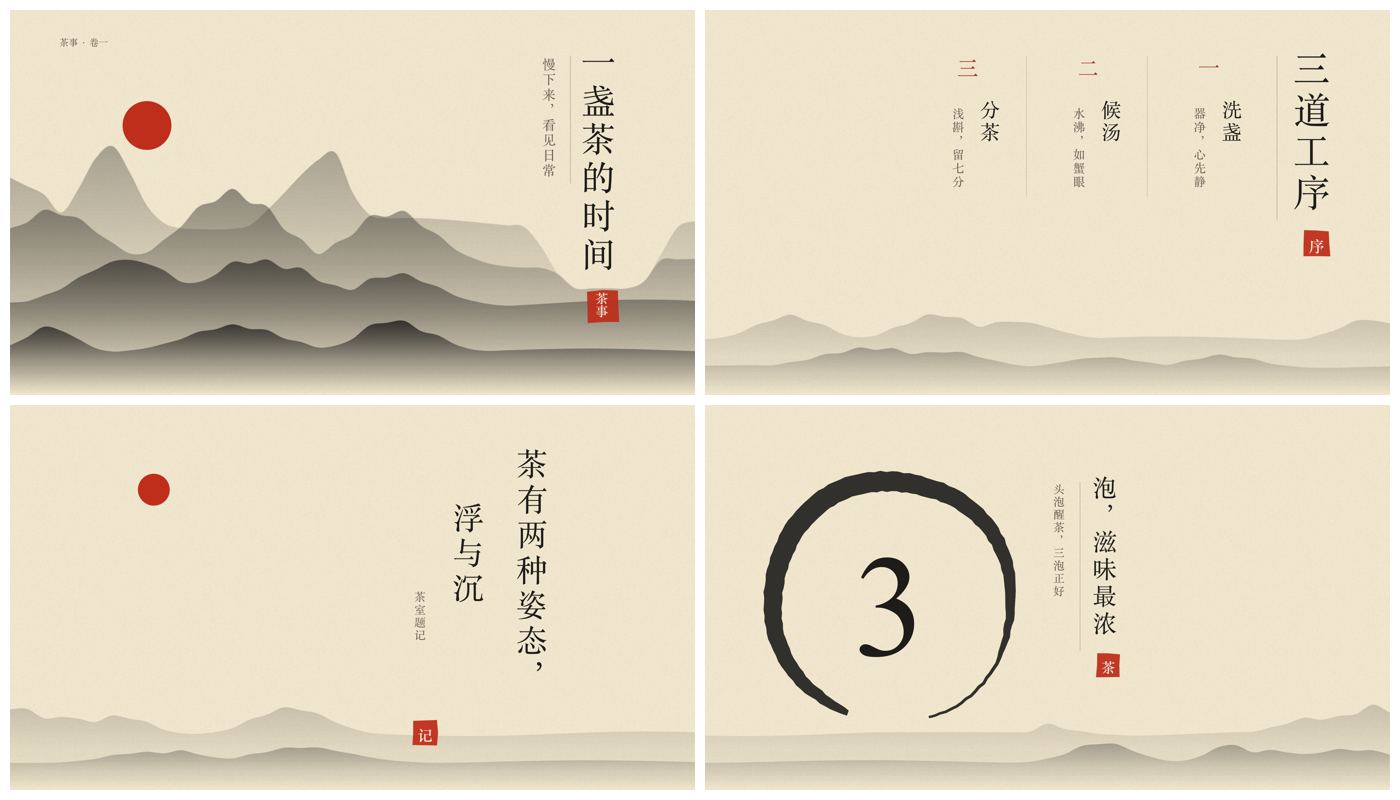 Ink wash culture, history, craft Preview all pages |
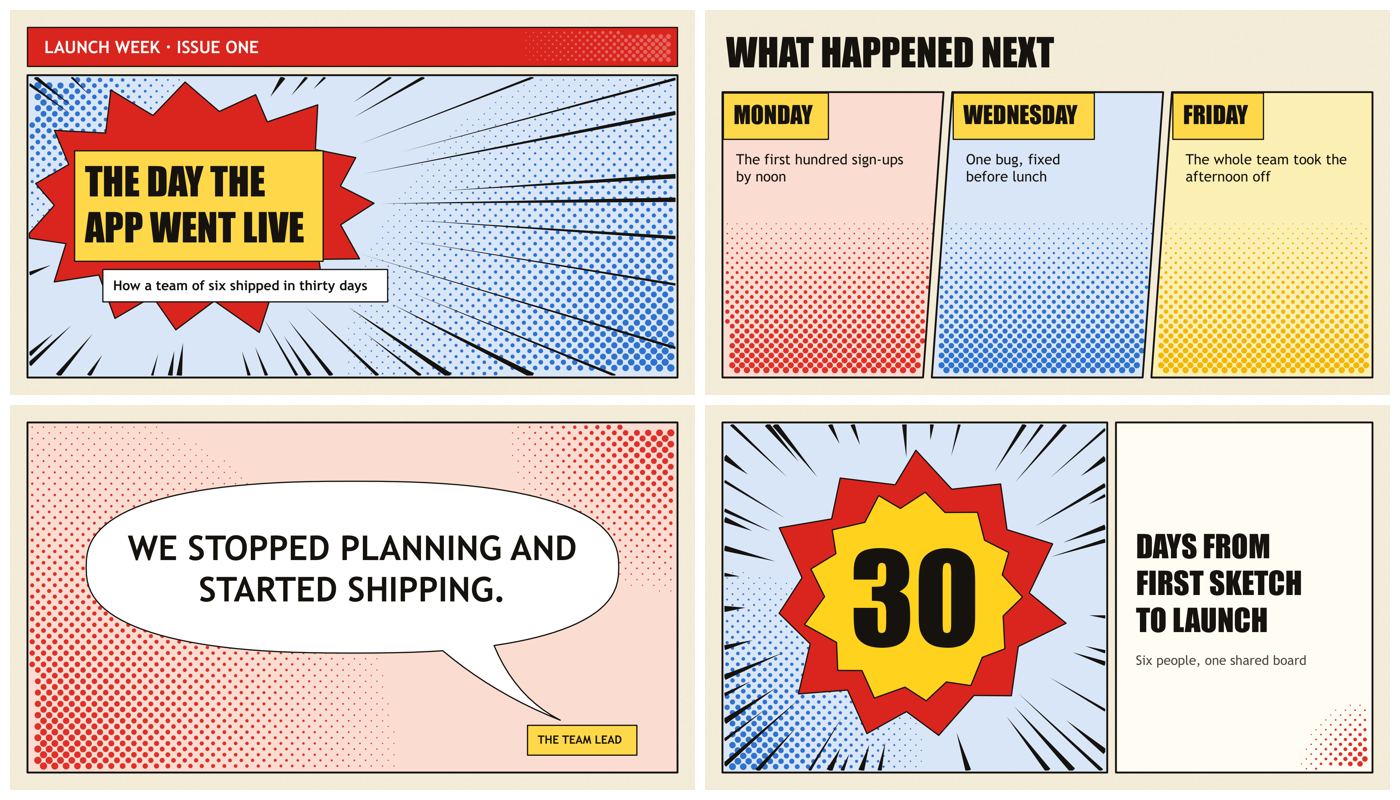 Comic panels storytelling, user journey, explainer Preview all pages |
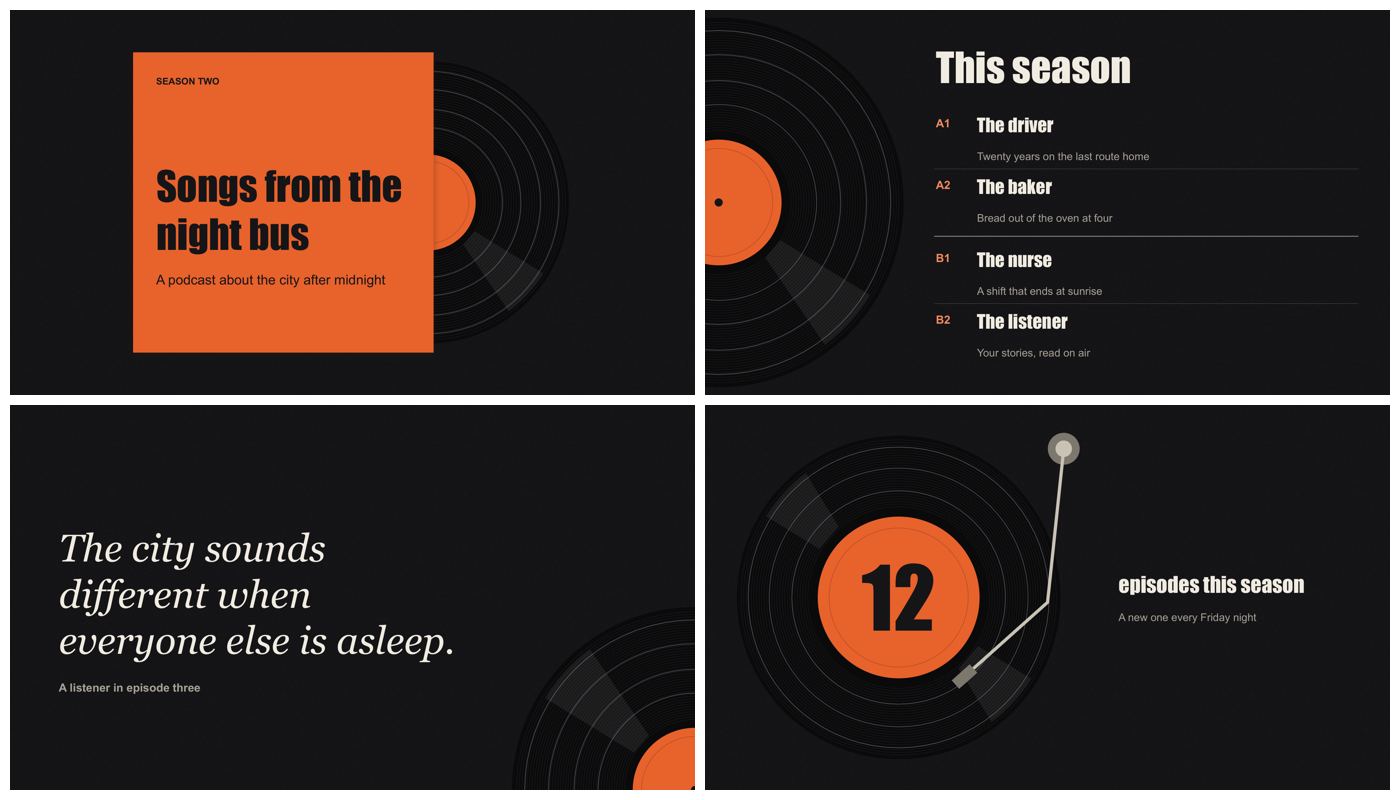 Vinyl record music, podcast, culture Preview all pages |
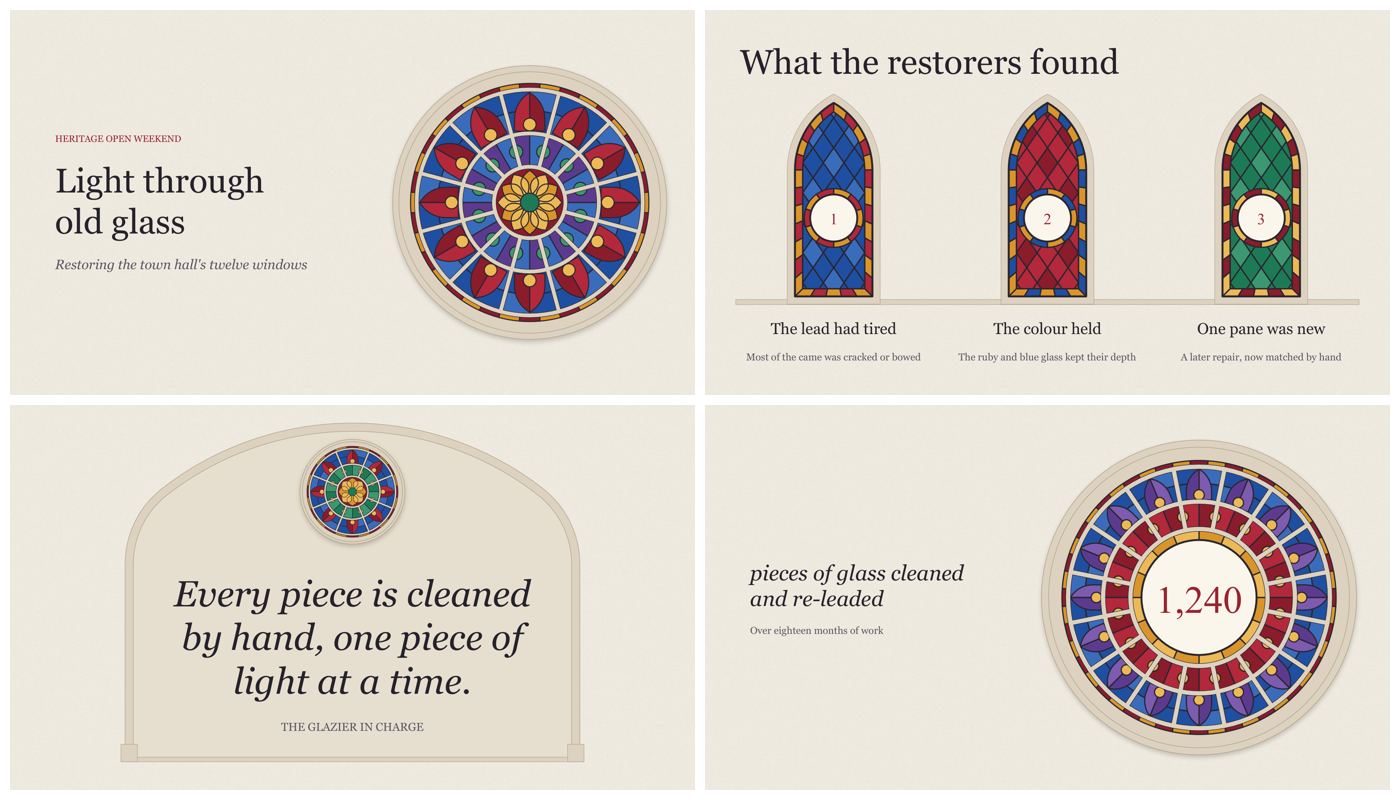 Stained glass heritage, culture, celebrations Preview all pages |
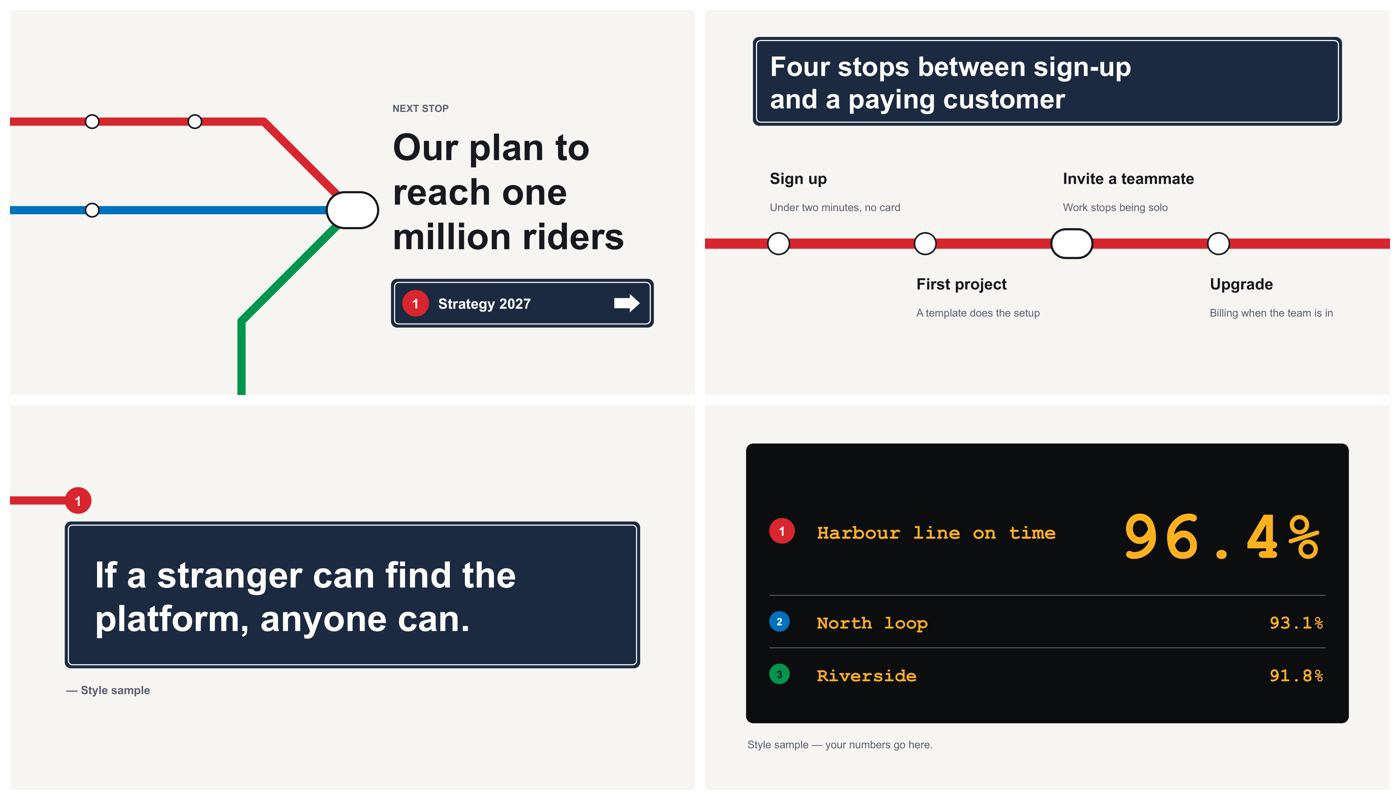 Wayfinding roadmap, process, onboarding Preview all pages |
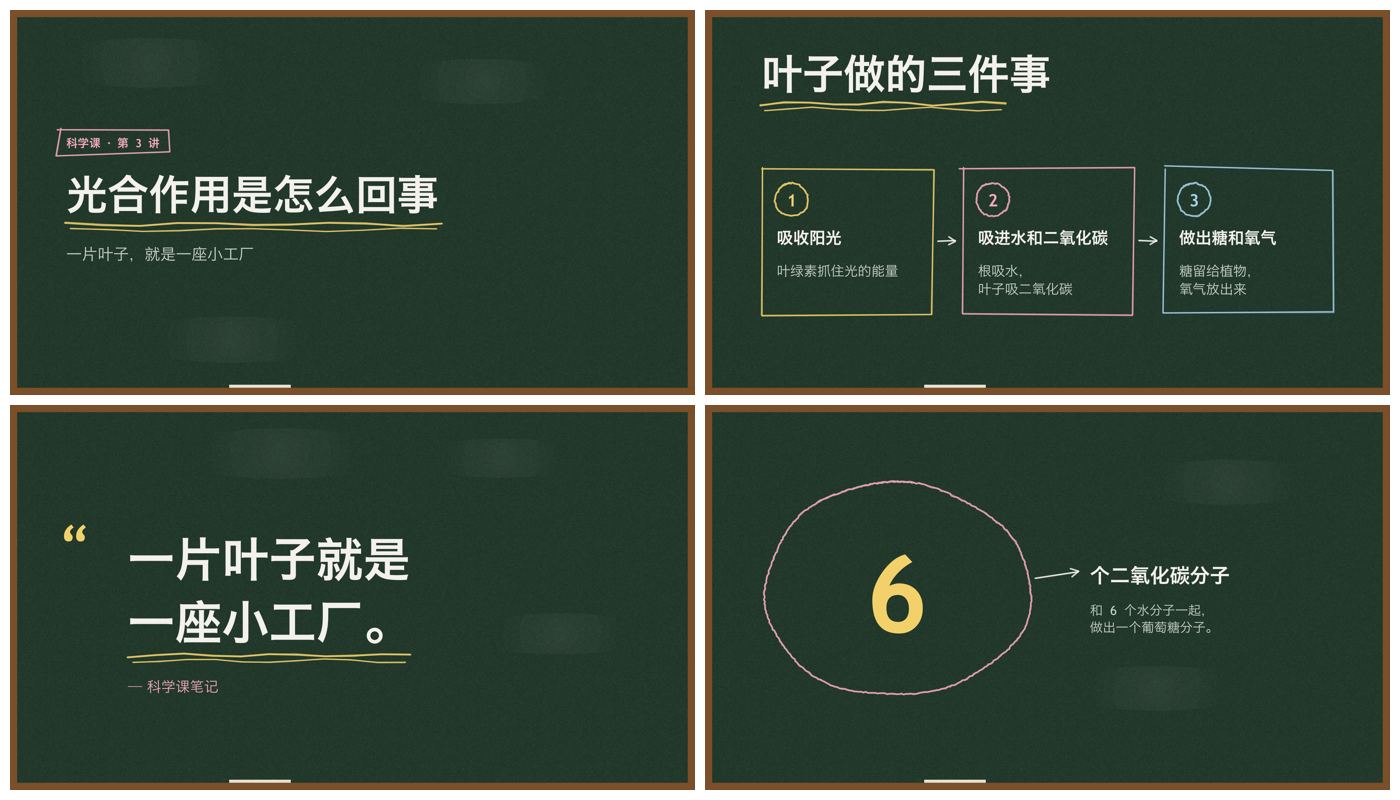 Chalkboard lesson, class, training Preview all pages |
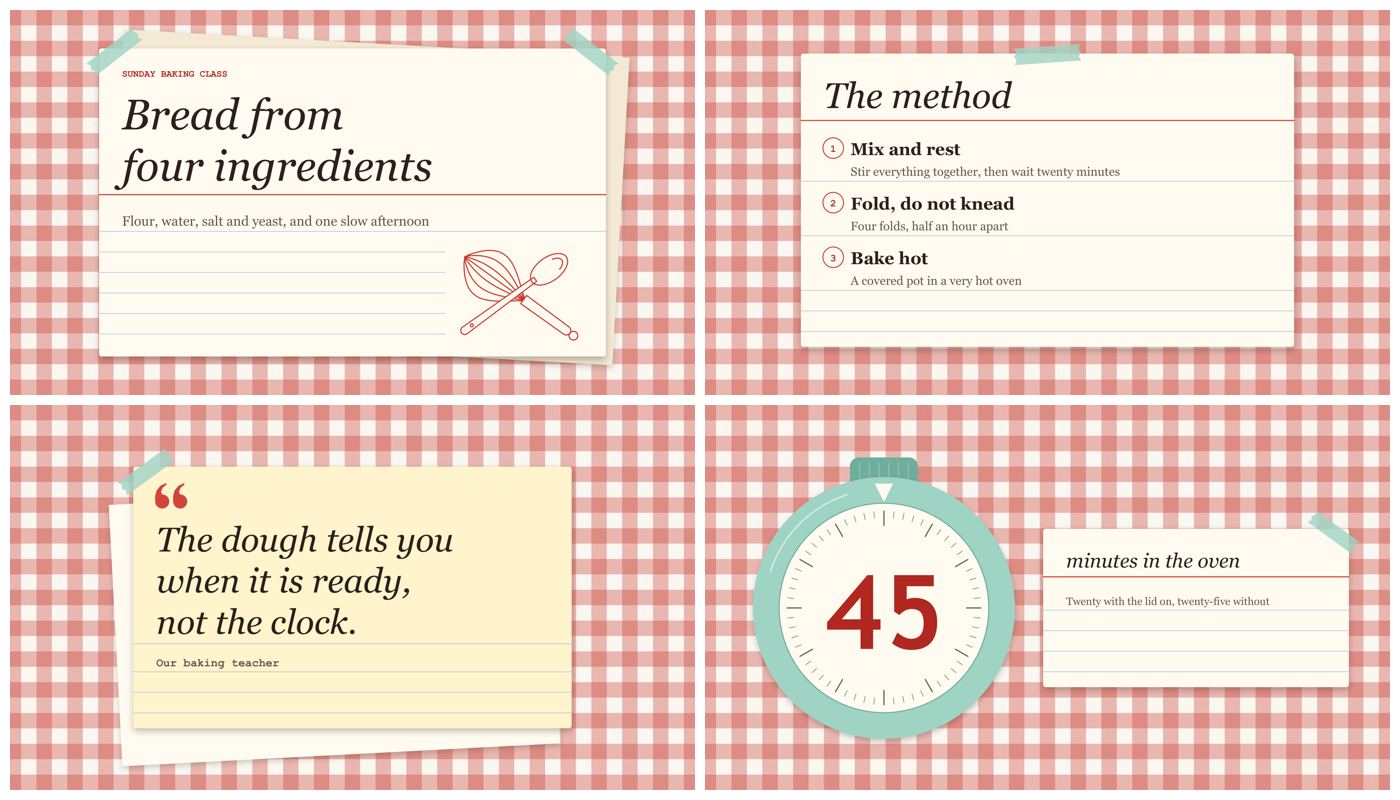 Recipe card food, cooking, recipes Preview all pages |
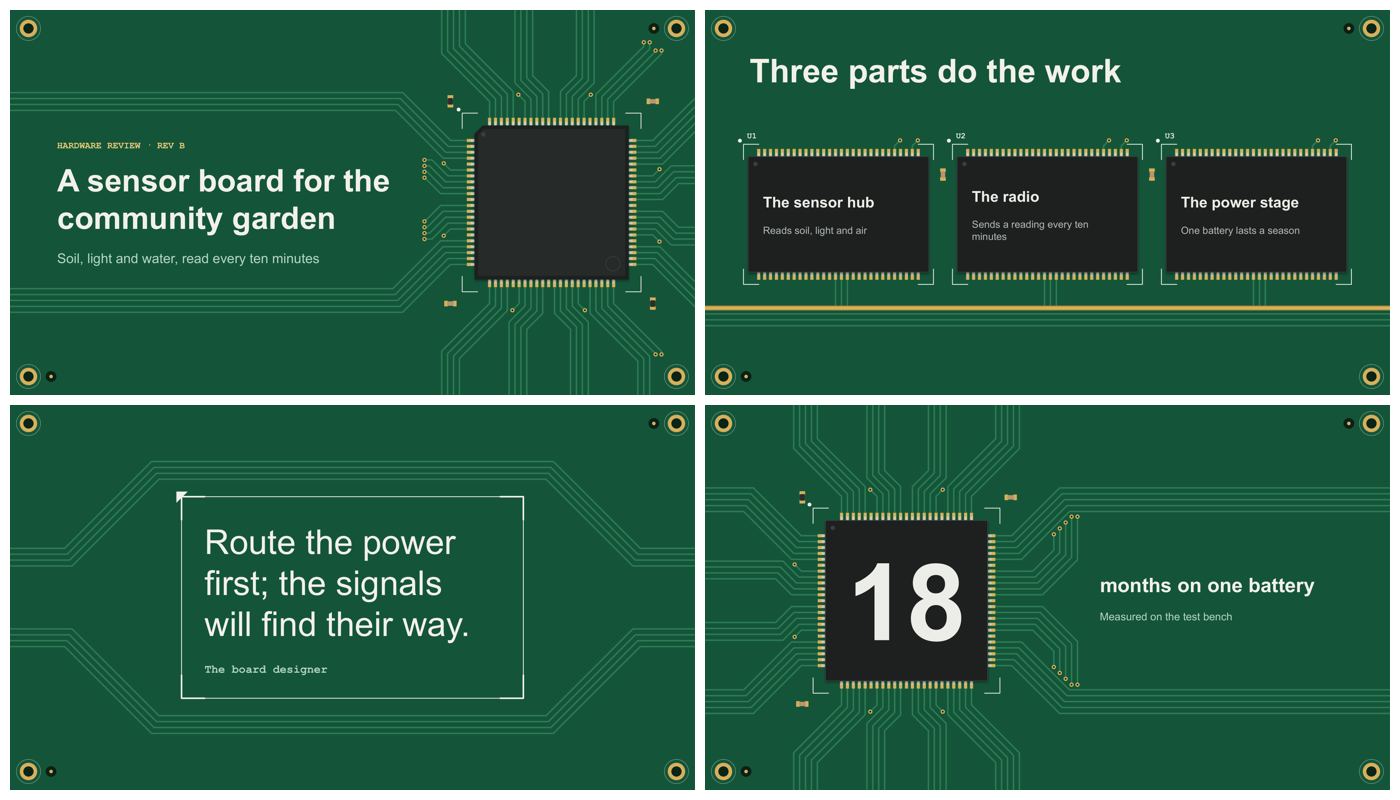 Circuit board hardware, IoT, embedded systems Preview all pages |
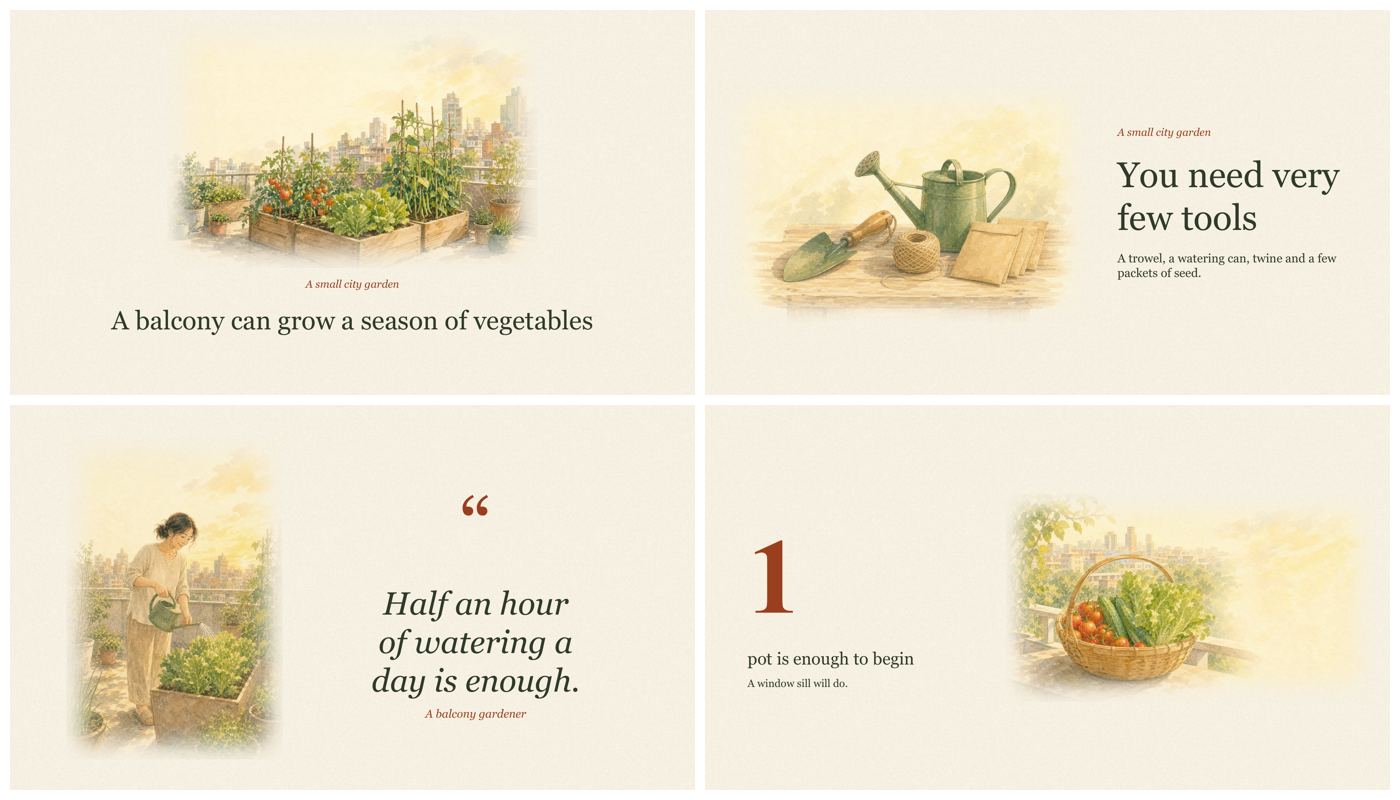 Watercolour storybook Illustrated storytelling Preview all pages |
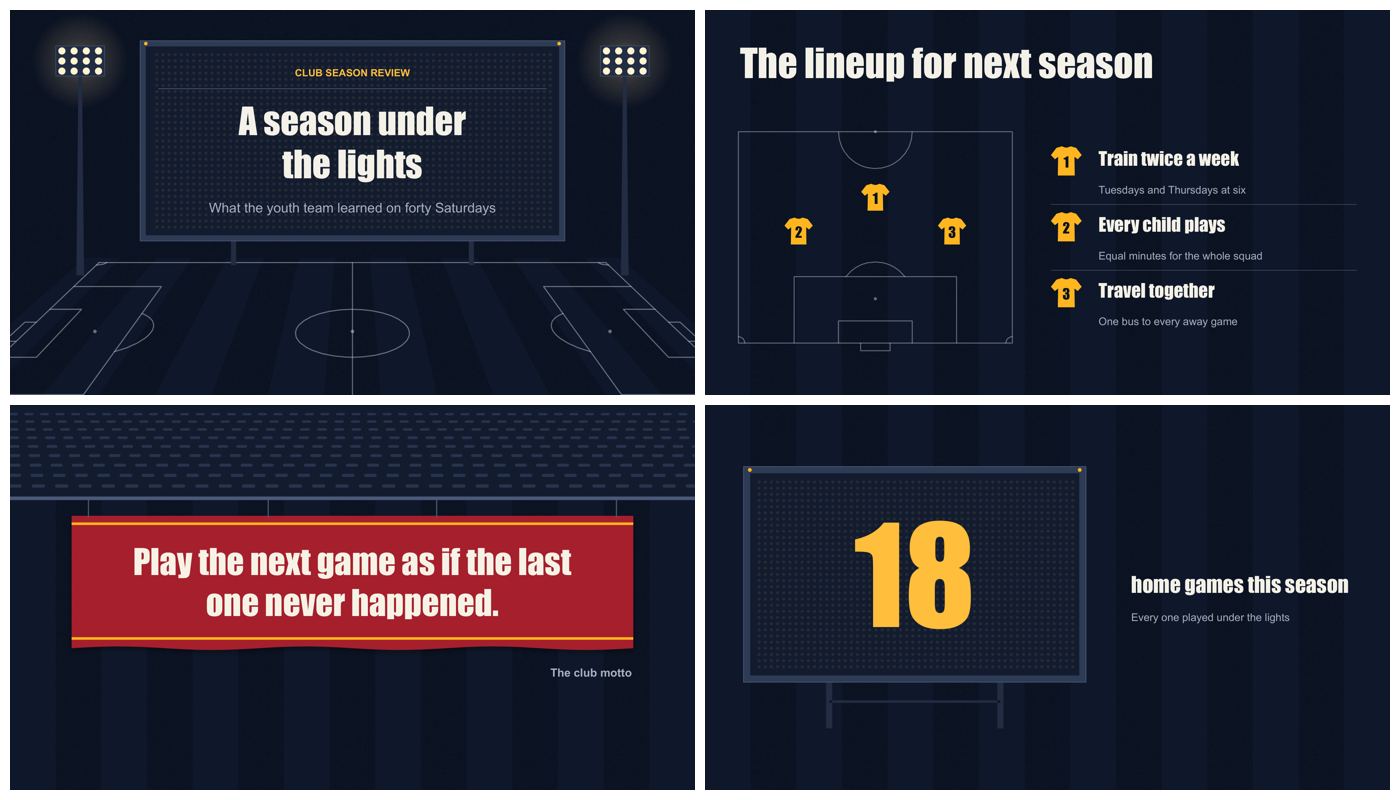 Scoreboard sports, competition, team results Preview all pages |
Choose a style in the online library, copy its prompt and paste it into the AI assistant where you installed slide-maker. Add your material, audience and slide count. For example:
Use slide-maker with the Herbarium (herbarium) template and its light palette.
Turn notes.md into an 8-slide biology lesson for middle-school students.
If you are unsure which style to use, ask for recommendations based on your topic. You can also supply a school or company PPTX as a reference for typography, colours and layout.
Twelve finished decks, each built from real material for a common use, in English and in Chinese. The template library sets the look; these show what a complete deck contains: KPI grids, native charts, tables, timelines, diagrams, equations, backup slides and a sources page. Flip through one online, or download its .pptx and click into any object. To reuse a deck's design, give its .pptx to slide-maker as a reference deck.
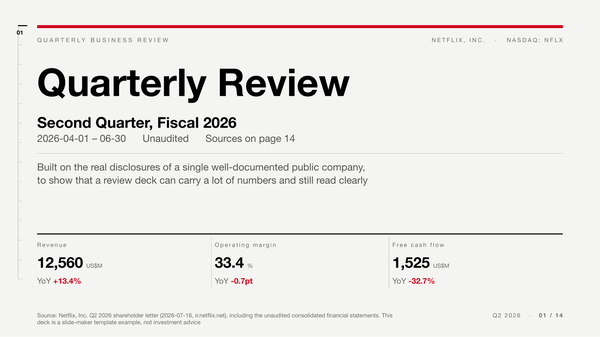 Quarterly Review / Business Update quarterly review, business update, metrics dashboard, exec readout Flip online · Download .pptx |
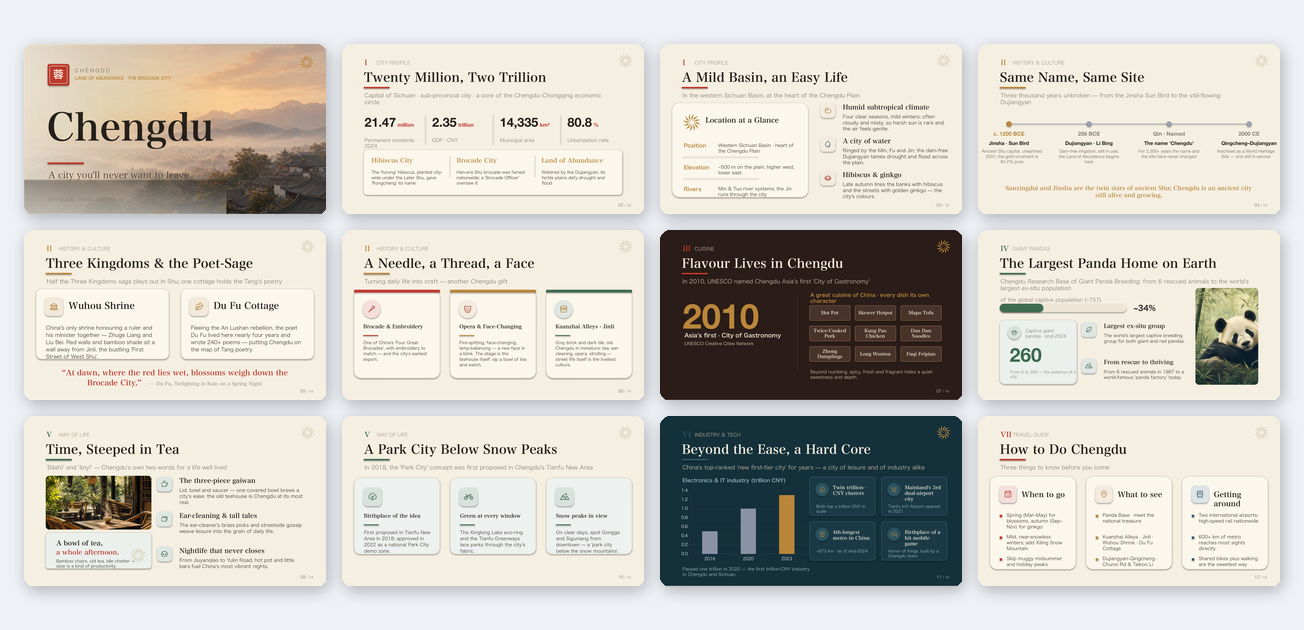 Visual Storytelling / Culture city, culture, event, brand story Flip online · Download .pptx |
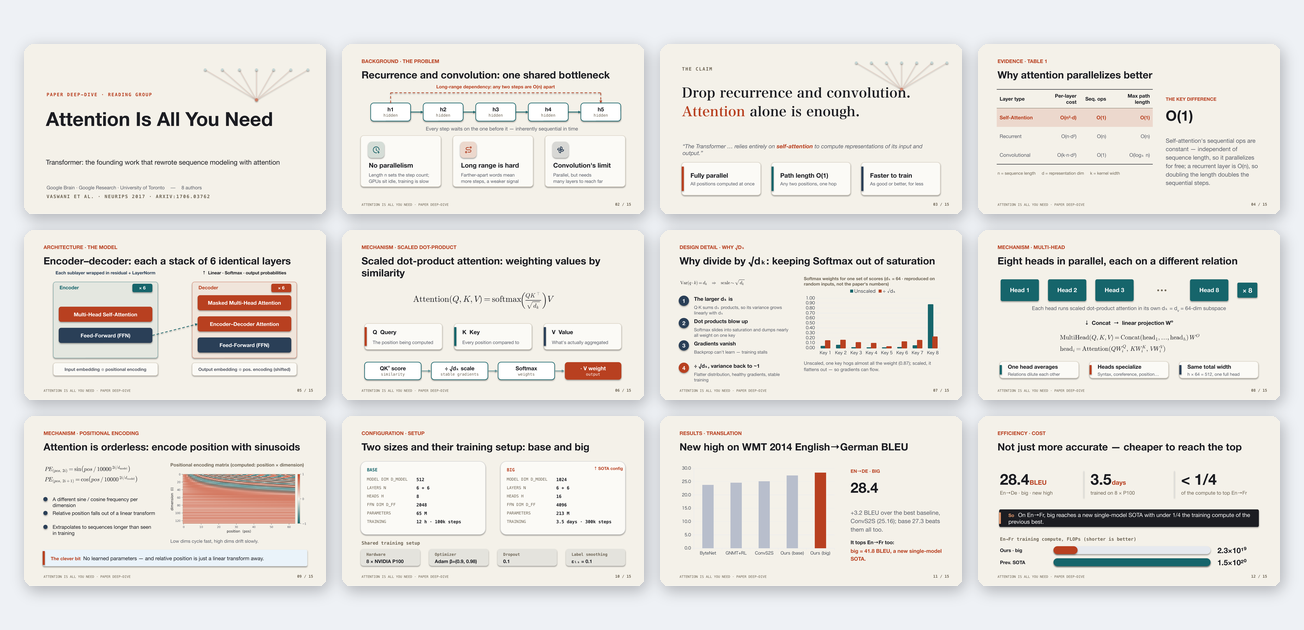 Lab Meeting / Paper Talk paper reading, lab meeting, method overview, experiment report Flip online · Download .pptx |
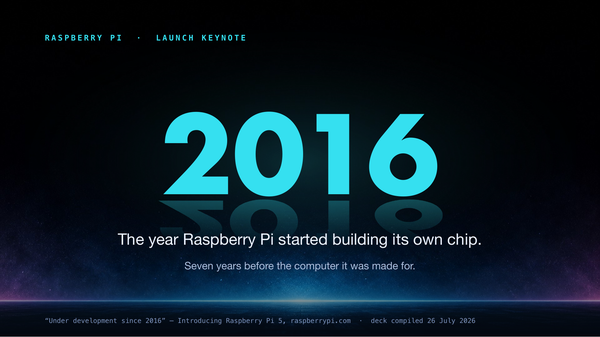 Product Launch / Keynote launch keynote, product reveal, spec walkthrough Flip online · Download .pptx |
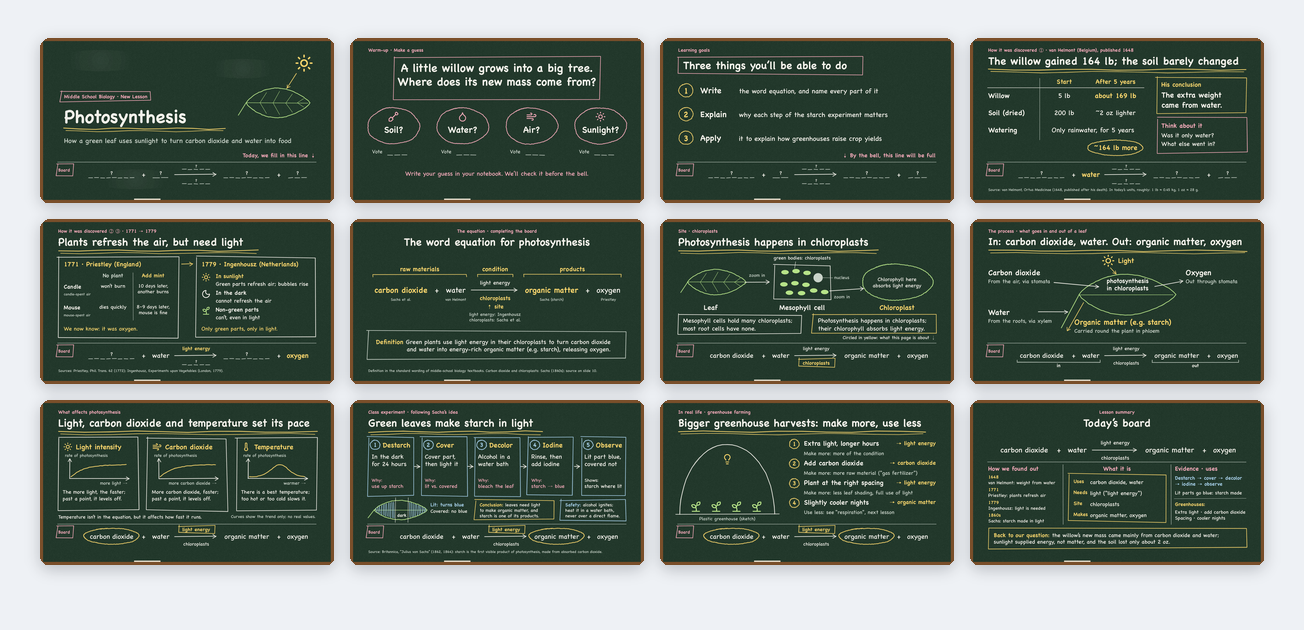 Classroom Lesson / Courseware school lesson, courseware, in-class quiz, chalkboard look Flip online · Download .pptx |
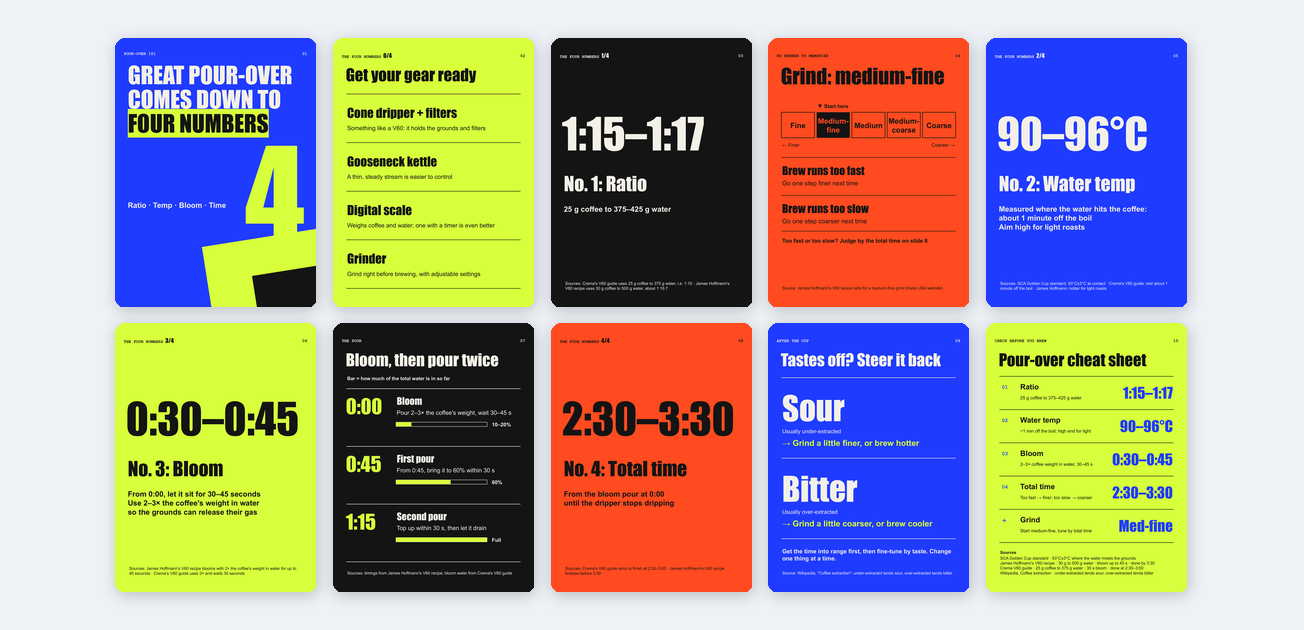 Social Carousel / 3:4 Portrait RedNote or Instagram carousel, how-to post, cheat sheet Flip online · Download .pptx |
 Startup Pitch / Fundraising seed pitch, investor meeting, fundraising deck, demo day Flip online · Download .pptx |
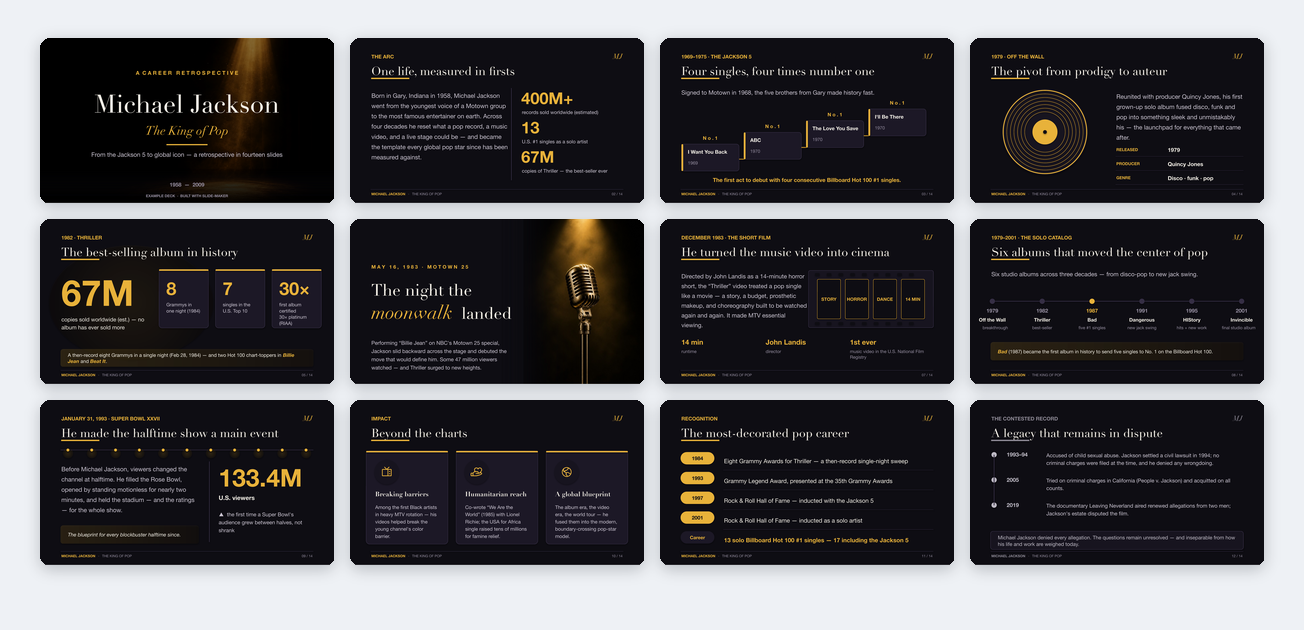 Biography / Brand Story public figure, brand archive, cultural retrospective Flip online · Download .pptx |
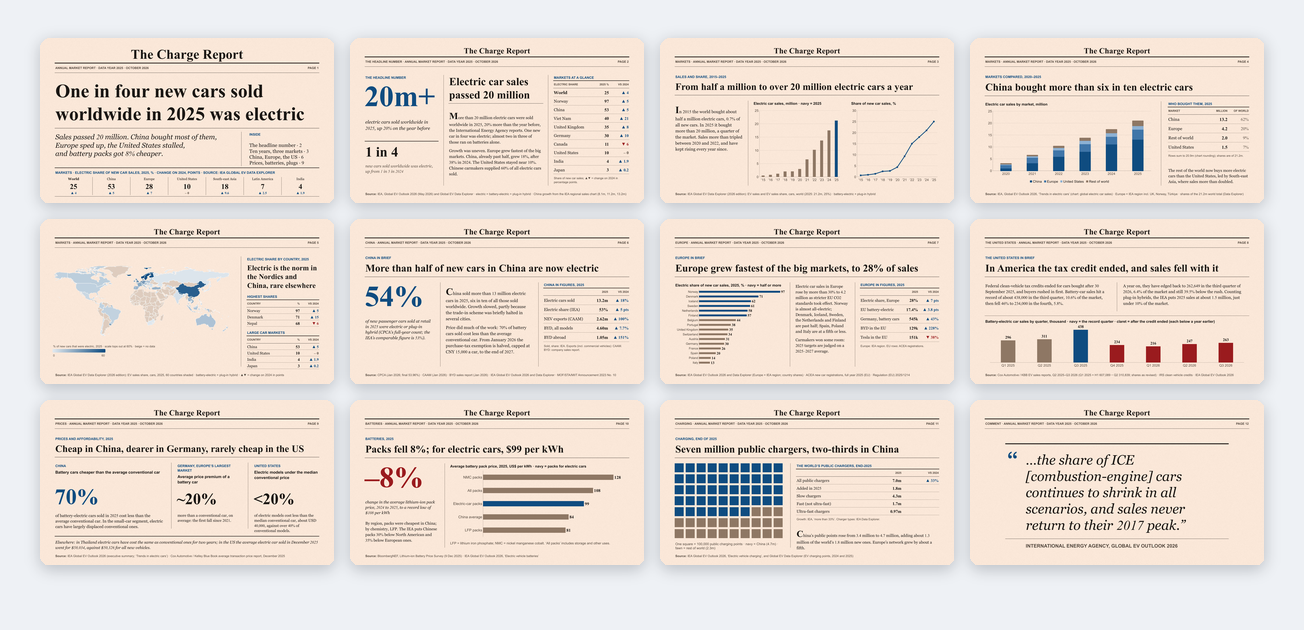 Market Report / Newsletter industry report, periodic briefing, data with a world map Flip online · Download .pptx |
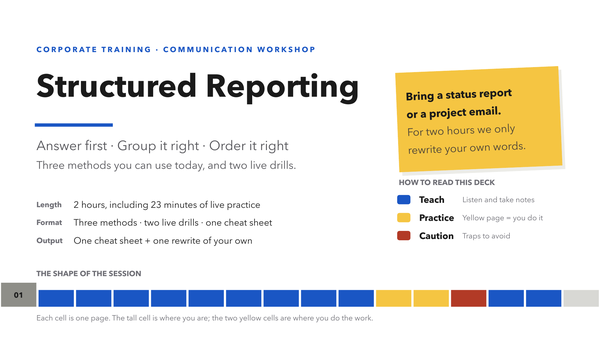 Corporate Training / Workshop training deck, workshop, skills enablement, exercises Flip online · Download .pptx |
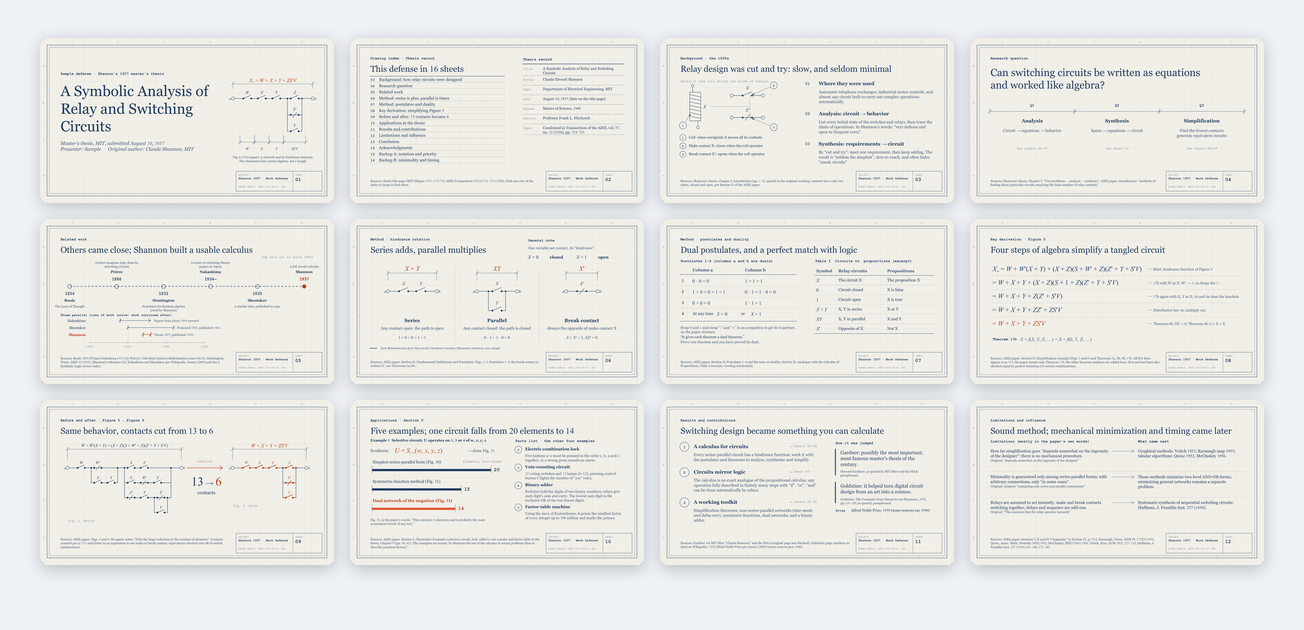 Thesis Defense / Research Talk thesis defense, proposal review, academic or engineering talk Flip online · Download .pptx |
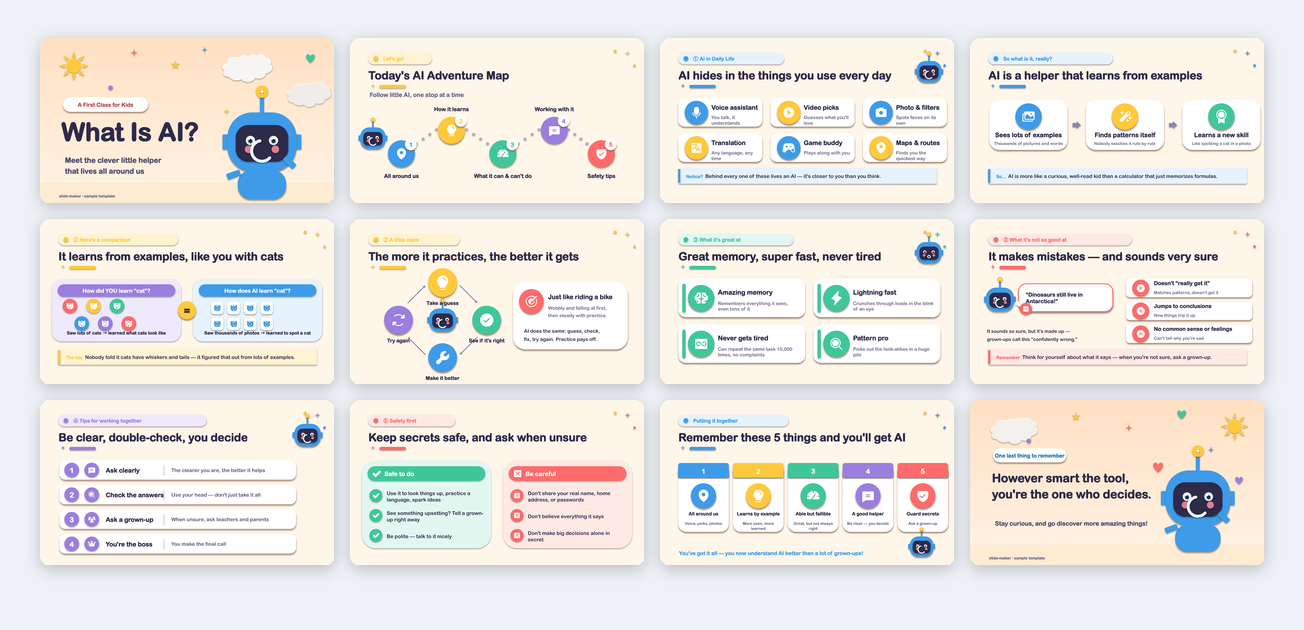 Teaching / Knowledge Sharing class explanation, reading share, training material Flip online · Download .pptx |
The Chinese versions are in the Chinese README.
| Feature | What you receive |
|---|---|
| Editable PPTX | Text boxes, native shapes and native charts you can change in PowerPoint. Photos, illustrations and cropped paper figures remain images. |
| Equations and data | Editable math text where possible; two-dimensional layouts such as fractions and matrices may be rendered as images. Data charts use native chart objects where suitable, so you can change their values. |
| Notes and animation | Presentation decks include per-slide speaker notes. Click builds are optional; static slides are supported. |
| Previews and build script | PPTX, PDF, browser preview and the generation script. Files go into a subfolder named after the presentation in your Downloads folder by default. The script supports later revisions. |
| Brand and preferences | Extract fonts and colours from brand guidelines, a logo or an existing deck, then confirm and save them for reuse. Recurring design preferences can also be saved. Your current request takes priority. |
| Version history | Keep build versions, compare changes and restore a whole deck or selected slides. |
| Canvas sizes | 16:9, 4:3, 1:1, rednote 3:4 cards, 9:16 portrait and A4, with layouts recomposed for each format. |
Key figures are checked against their sources, and paper figures are cropped from the original where possible. With only a topic, the skill researches it online before planning the slides. Before a formal presentation, confirm that the key data and conclusions match your intent.
- Define the task. Agree on the topic, material, audience, duration, slide count and style. You can delegate design choices; material assumptions are stated before the build.
- Read the material. Extract text, figures, data and equations, keeping track of sources. Supported inputs include papers, repositories, Word, Excel, CSV, images, audio and video.
- Confirm the plan. Review the slide-by-slide outline, then the typography, palette, layouts and animation. Without an existing template, you can compare design directions first.
- Build and check. Generate the PPTX, render its pages and check file structure, overflow, overlaps and fonts.
- View and review. See the first render, then choose the review tier. Independent reviewers check content and design; revisions are checked before delivery.
- Revise in conversation. Ask for changes such as “turn slide 7 into a chart,” “make it 10 slides” or “shorten the notes.” The deck is rebuilt from its original script.
The skill is free. Running it uses your AI subscription or API credits. Slide count, source length, image generation and review effort affect usage and elapsed time.
review: |
Scope |
|---|---|
fast (default) |
One round covering content and design, checking about five key claims. |
standard |
Separate content and design reviewers, up to two rounds, checking about ten key claims. |
thorough |
A fuller panel with cross-checks where required, up to three rounds, checking all key claims. Suited to defenses, pitches and other high-stakes talks. |
none |
Your explicit choice after viewing the render: skip independent review, including its source re-check. |
Long decks are reviewed by section as well as for overall coherence. Delegating the choice runs at least fast; it never skips review automatically.
Choose either automatic or manual installation. Automatic installation is recommended for most users.
Run this command in a terminal:
npx skills add addsumtech/slides_makerChoose your AI assistant and installation scope when prompted. Select a global installation if you want to use the skill across projects. Once installed, ask your assistant to create a presentation.
If npx is not found or your Node.js version is too old, install Node.js 22.20 or later, reopen the terminal and try again.
More automatic-installation options
-g: install globally for use across projects.-a claude-codeor-a codex: select an assistant without the tool-selection prompt.-y: skip installation confirmation.
See the npx skills documentation for all options.
Use this method if you want a source checkout or prefer to maintain the installation yourself. With Git and Python installed, run these commands in order:
git clone --depth 1 https://github.com/addsumtech/slides_maker.git
cd slides_maker
python3 -m pip install -r skills/slide-maker/requirements.txt
python3 skills/slide-maker/scripts/install_skill.py --target all
The final command copies the skill into the AI-assistant skill directories detected on your machine.
Select a manual-installation directory
all detects existing host directories. If none are found, it uses the host-neutral ~/.agents/skills/ directory. To select a directory explicitly, replace all with agents, codex or claude.
Claude Code plugin and skill marketplaces
For plugin installation, enter these commands in Claude Code:
/plugin marketplace add addsumtech/slides_maker
/plugin install slide-maker@slides-maker
Other distribution options: Tencent SkillHub and ClawHub. OpenClaw users can follow the ClawHub installation instructions.
Whichever installation method you choose, the first presentation request checks the environment and attempts to install missing Python packages. If system tools such as Python or LibreOffice are missing, follow the installation instructions shown. Existing tools do not need to be installed again.
You need Python 3.9+, LibreOffice to render page previews, and librsvg, cairosvg or a Chrome-family browser to rasterize SVG icons. For system tools, use the commands below:
| OS | LibreOffice | SVG icons |
|---|---|---|
| macOS | brew install --cask libreoffice |
brew install librsvg |
| Linux (Ubuntu / Debian) | sudo apt install libreoffice |
sudo apt install librsvg2-bin |
| Windows | winget install TheDocumentFoundation.LibreOffice |
Install Chrome or Edge |
Windows has less test coverage. If your terminal only provides the python command, replace python3 in the examples with python. See Troubleshooting for other issues.
Give your material to the assistant where you installed the skill, or provide a file path it can read, and describe what you need. Claude Code also accepts /slide-maker.
In addition to the paper-talk example above, you can start from a repository:
Use slide-maker to introduce this codebase to new teammates.
Focus on the architecture and main workflows.
With a reference deck, specify which parts to use:
Use the typography, colours and layouts in /path/ref.pptx as a reference.
Build a new English presentation using the content of paper.pdf.
The assistant asks about details that affect the plan, such as audience, slide count and style. Short answers are enough; say “you decide” to delegate a choice.
When a newer version is available, slide-maker asks before updating. It stays quiet when current or offline. Remote version information is cached for 24 hours; local changes are checked each time. To disable version notifications, set export SLIDE_MAKER_NO_VERSION_CHECK=1.
Ask for image generation when you need a cover or illustrations. Use the image-generation tool available in your AI assistant, or configure an OpenAI API key. Image generation is optional; native text, shapes and charts do not depend on it.
| Source | Presentation |
|---|---|
| Papers, experiment results and figures | Lab meetings, paper readings, conference talks, proposals, defenses, academic posters |
| Repositories, README files, technical docs | Architecture introductions, progress updates, code walkthroughs, engineering reviews |
| Course material, product docs, market data | Lessons, product introductions, market analyses, proposals |
| A topic | A presentation planned from online research |
| A reference PPTX | New content using an existing design as a reference |
| Content for other formats | rednote cards, portrait covers, square cards, A4 one-pagers |
If generation or rendering fails, ask your assistant to locate and run the skill's scripts/check_env.py. For a global installation, you can also use the matching directory:
# Host-neutral skill directory
python3 ~/.agents/skills/slide-maker/scripts/check_env.py

# Codex
python3 ~/.codex/skills/slide-maker/scripts/check_env.py

# Claude Code
python3 ~/.claude/skills/slide-maker/scripts/check_env.py
It lists missing dependencies and repair commands.
For build errors, fonts, rendering and image sourcing, see Troubleshooting & FAQ. If the problem persists, open an issue with the error output.
See SECURITY.md for reporting security issues. The project uses the MIT license.


